
Moving from OpenCart without losing Google rankings: a step-by-step guide
What really affects rankings during a move, how to transfer products, customers and orders with a bridge file, and how to set a 301 redirect for every old URL.
Команда TRUNLY3 min read

For years OpenCart was the default choice for Ukrainian stores: free, flexible, with plenty of modules. But interest in it in Ukraine fell by about 40% over the last year (Google Trends), and almost threefold since 2019. Modules age, versions are incompatible, developers are harder to find. If you’re thinking about moving, the main fear is losing your Google rankings. Here’s how to avoid that.
What really affects rankings during a move
Google doesn’t “punish” you for changing platforms. Rankings are lost for specific reasons:
- old URLs return 404 — a page that ranked at the top simply disappeared;
- titles and texts changed for products and categories;
- pages that brought traffic disappeared (filters, articles, brands);
- the site got slower or duplicate pages appeared.
All of this is under your control. If every old URL leads to the matching new page with a 301 redirect, and titles and descriptions are kept, rankings move to the new URLs within a few weeks.
Step 1. Take a “snapshot” of the old site
- Save the sitemap (sitemap.xml) — the list of URLs Google knows.
- Export the “Performance” report from Search Console for 3 months: which pages and queries bring clicks.
- Mark the top 50 pages by traffic — you’ll check them by hand after the move.
Step 2. Transfer data with a bridge file
OpenCart has no built-in API for a full export. So TRUNLY uses a bridge file: a single PHP file you put in the site root next to config.php via FTP or your hosting file manager. It only reads data, works for 7 days and transfers products, customers, orders and pages. No database passwords needed. Delete the file after the move.
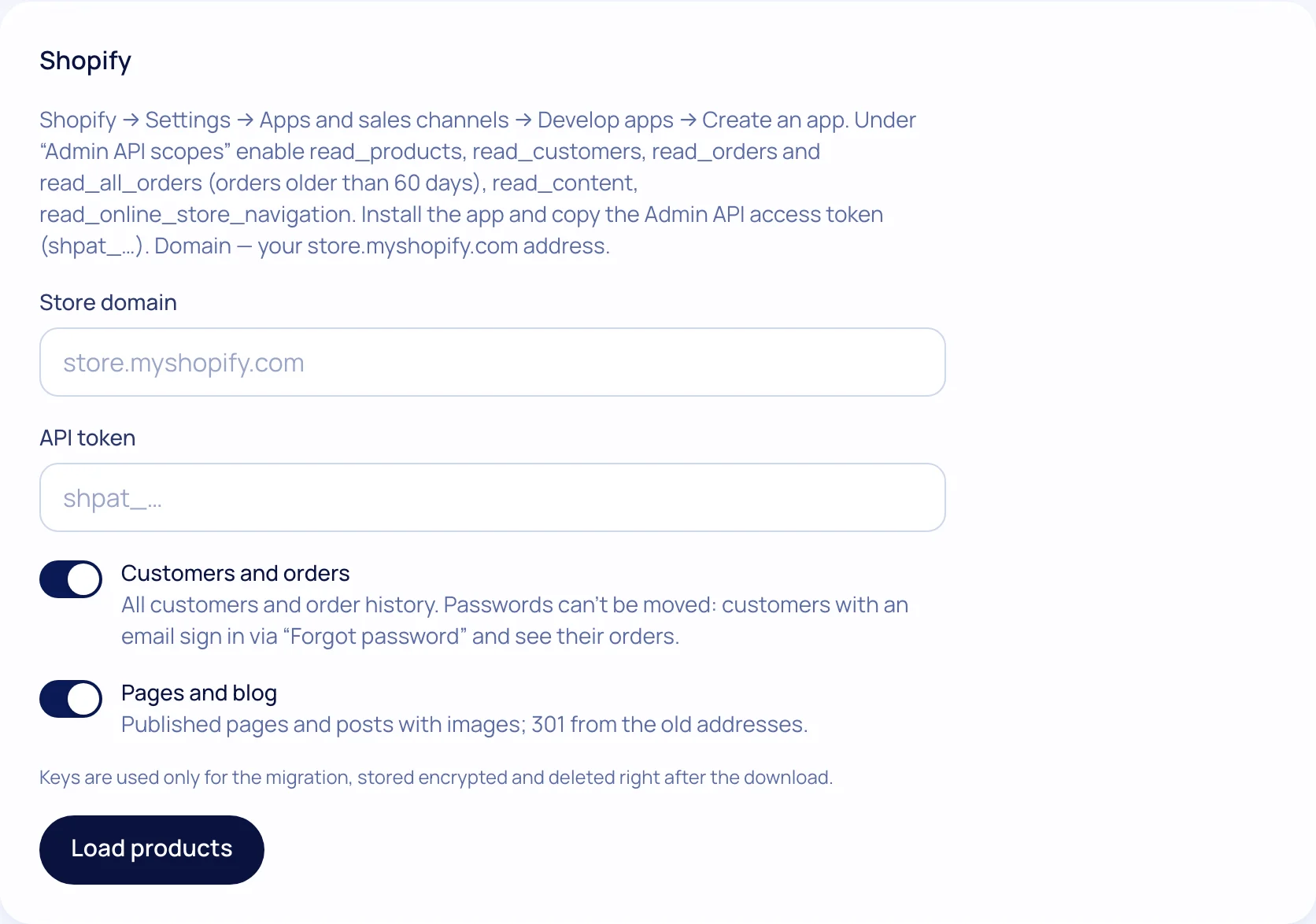
An alternative is a YML feed (if you have a feed module for Prom or Rozetka) or a CSV/Excel file. But that way only products move, without customers and orders.
Step 3. Keep the SEO fields
During the transfer, products keep the same names, descriptions, titles, meta descriptions and, where possible, the same URLs (slugs). Spot-check 10–20 products and all main categories.
Step 4. Set a 301 for every old URL
In TRUNLY: “SEO → Migration” → enter the old site’s address. The store reads the old sitemap and matches every URL with a new page:
- sure matches (same slug, same title) are redirected right away;
- uncertain ones go to a “Review” list: confirm in one click or pick another page;
- no match — you choose by hand (for example, send an old promotion to a category).
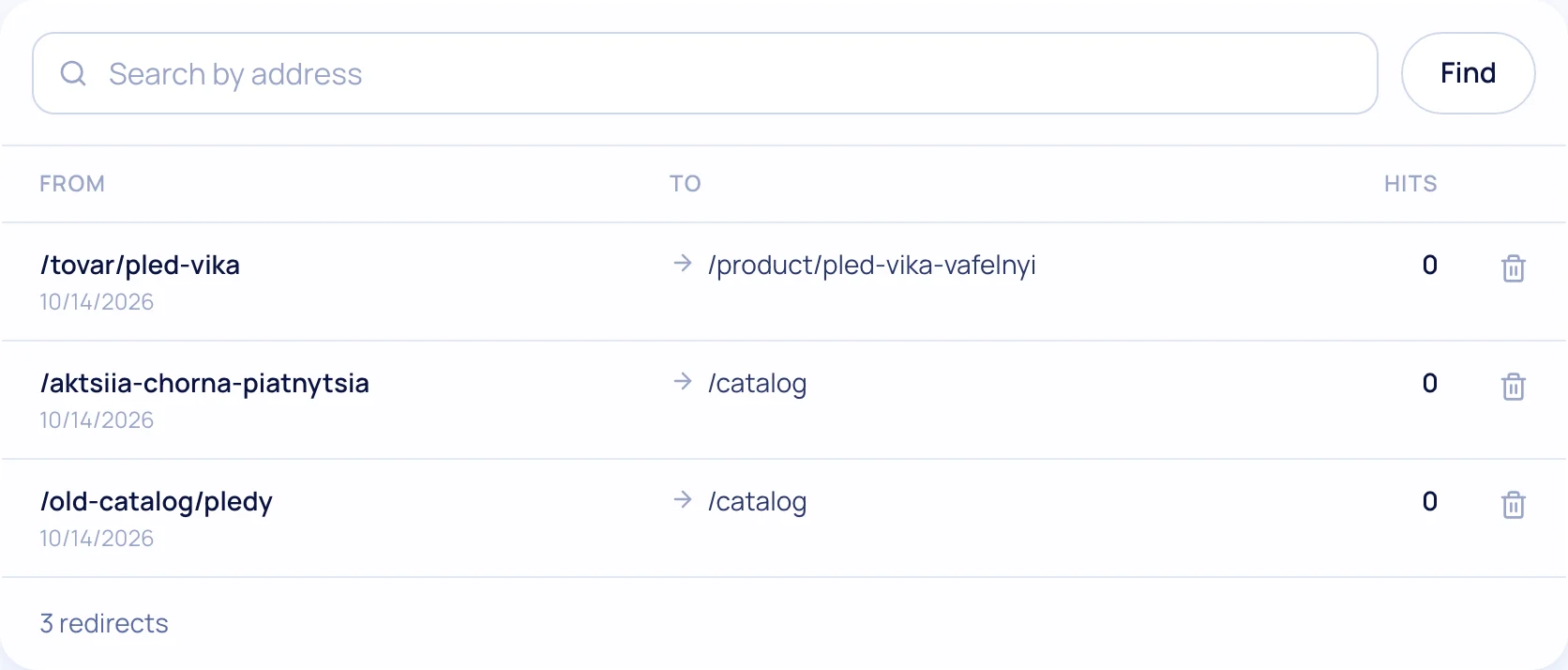
Tip: transfer all products and pages first, and only then scan the sitemap — that way more exact matches are found.
Step 5. Switch the domain and watch for two weeks
- Point the domain’s DNS to the new store.
- Submit the new sitemap in Search Console.
- Check the “Pages” report for 404 errors every day and add redirects.
- After 2–4 weeks, compare rankings with the snapshot. Small fluctuations in the first weeks are normal.
What changes after OpenCart
No more module updates, hosting or hunting for a developer. Nova Poshta, payments, instalments and software cash registers (PRRO) are built in. Your products, customers, order history and Google rankings stay with you.
Migration checklist without losing rankings
0 of 10 done
Your ticks are saved in this browser
More on the “Moving from OpenCart” page.
Questions and answers
Will I lose rankings if I leave OpenCart?
No, if every old URL gets a 301 redirect to the matching page and titles and descriptions are kept. Small fluctuations in the first weeks are normal.
What is a bridge file?
A PHP file you put in the root of your OpenCart site. It only reads data, works for 7 days and transfers products, customers, orders and pages.
Are customer passwords transferred?
No. Customers sign in via “Forgot password” and set a new one.