
Google Merchant Center for an online store: setting up your product feed step by step
How to get into Google Shopping and launch product ads: the account, site verification, the product feed, shipping, diagnostics and linking Google Ads.
Команда TRUNLY3 min read

Google Merchant Center is Google’s “warehouse” for your products. Without it, your products won’t appear in the Shopping tab, in product blocks with prices or in Performance Max ads. You set it up once, and after that the feed keeps prices and stock up to date automatically.
Why a store needs Merchant Center
- Products in Google Shopping — with a photo, price and store name; where Google shows free product listings, you don’t pay per click.
- Performance Max and Shopping ads — they are impossible without Merchant Center.
- Seasonality. Interest in Merchant Center in Ukraine peaks in September–November, when stores prepare for sales. Set it up now so you pass review before the peak.
What to prepare
- A store on your own domain with HTTPS (on TRUNLY — on any plan).
- “Shipping and payment”, “Returns” and contact pages — Google checks them.
- A product feed — a link to a file with products, prices, availability and photos.
Step 1. Create an account and verify your site
Go to merchants.google.com, create an account and enter your store’s address. Google will ask you to prove the site is yours; the easiest way is a meta tag. In TRUNLY you paste the verification code into the SEO settings, without editing page code.
Step 2. Get the feed link
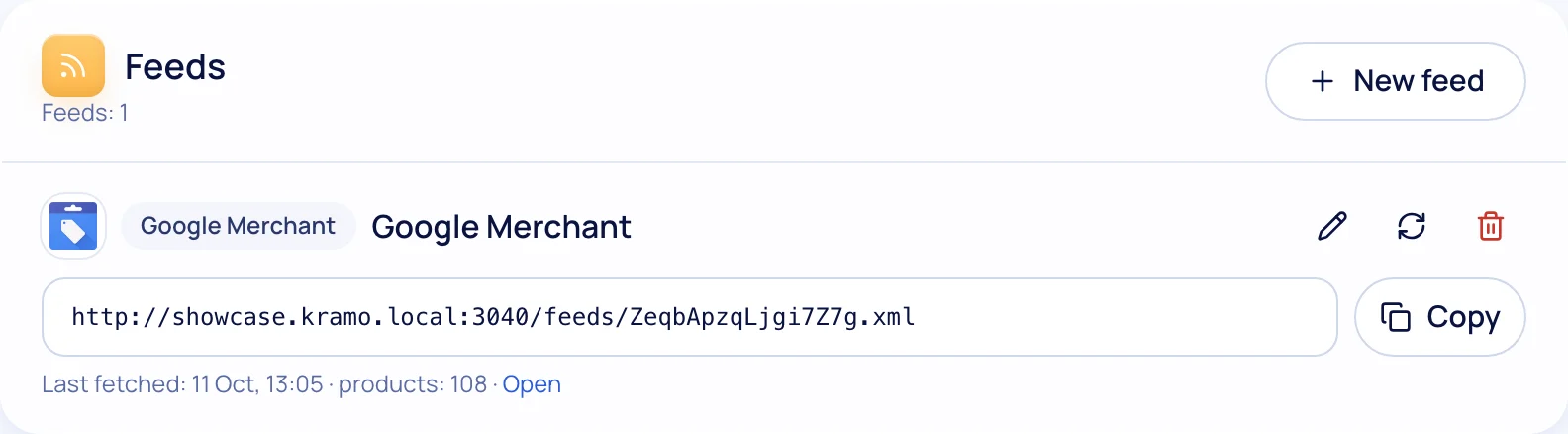
In TRUNLY, feeds are created in the analytics and ads section: choose the “Google” type and the products or categories you want to show, then copy the link. The feed updates itself whenever you change a price or stock level.
Step 3. Add the feed to Merchant Center
In Merchant Center: “Products” → “Add products” → “Add source” → “File from a URL” (scheduled fetch). Paste the feed link and choose a daily update.
Step 4. Shipping and returns
Enter your shipping terms (cost and delivery time) and your return policy. Google shows them in product listings, and they influence the buyer’s decision.
Step 5. Fix diagnostics errors
For the first few days Merchant Center reviews your products. Typical reasons for disapproval:
- the price in the feed doesn’t match the price on the page;
- there is no returns or contact page;
- photos with watermarks or text over the product;
- a product is “out of stock” in the store but “in stock” in the feed.
If prices and availability in the feed come from the store automatically, the first two problems disappear on their own.
Step 6. Connect Google Ads and analytics
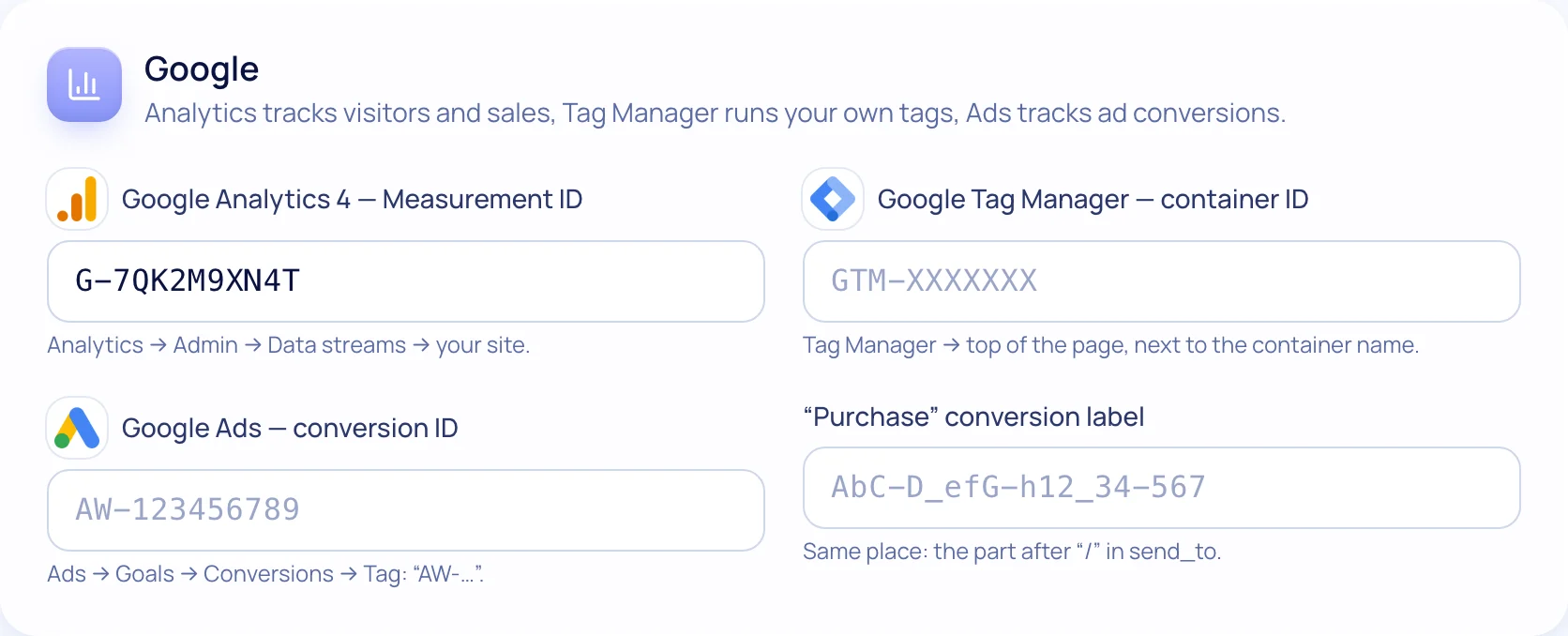
Link Merchant Center to Google Ads and you can run Shopping ads. To see sales, paste your GA4 and Google Ads IDs into the store: it sends the “view item”, “add to cart” and “purchase” events by itself.
What next
Once products pass review, watch the “Performance” report: which products get impressions and clicks. Weak titles and photos are the first thing worth improving. Other channels for your products are covered in “Rozetka and Prom from your own store”.
Questions and answers
What is Google Merchant Center?
A Google service where your store sends products with prices and availability. From there they appear in Google Shopping and in product ads.
Do I need my own domain for Merchant Center?
Yes, Google checks that the site is yours. On TRUNLY, your own domain is available on every plan.
Why does Merchant Center disapprove products?
Most often: the price in the feed differs from the page, there is no returns page, photos contain text, or availability is wrong.